
If you’ve ever wished you could manage your notes, projects, and creative ideas all in one place — without switching between dozens of apps — then Notion might be exactly what you’re looking for.
In this guide, we’ll walk through what Notion is, how to use it effectively, and some practical tips I’ve learned from personal experience using it to manage writing, research, and daily tasks.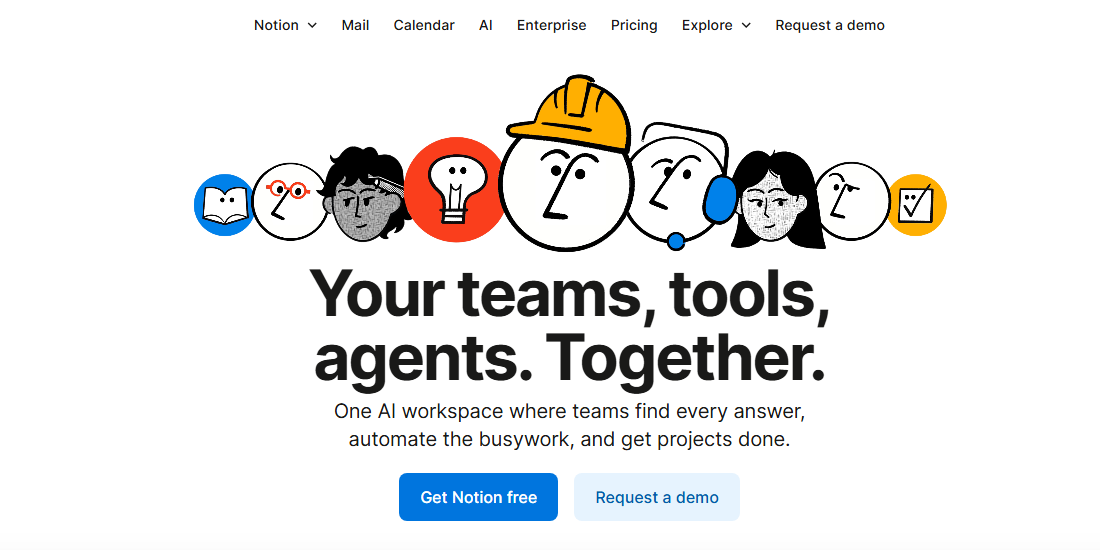
What Is Notion?
Notion is an all-in-one workspace app that lets you write, organize, plan, and collaborate — all in one flexible platform.
It combines the best features of multiple tools you may already know:
● Google Docs — for writing and collaboration
● Trello — for project boards and task tracking
● Evernote — for note-taking and organization
● Airtable — for databases and structured information
Notion works seamlessly on the web, desktop, and mobile. Whether you’re a student, freelancer, or creative professional, it can easily become your central productivity hub.
You can explore it at Notion.
Getting Started: How to Use Notion Step by Step
1. Sign Up and Set Up Your Workspace
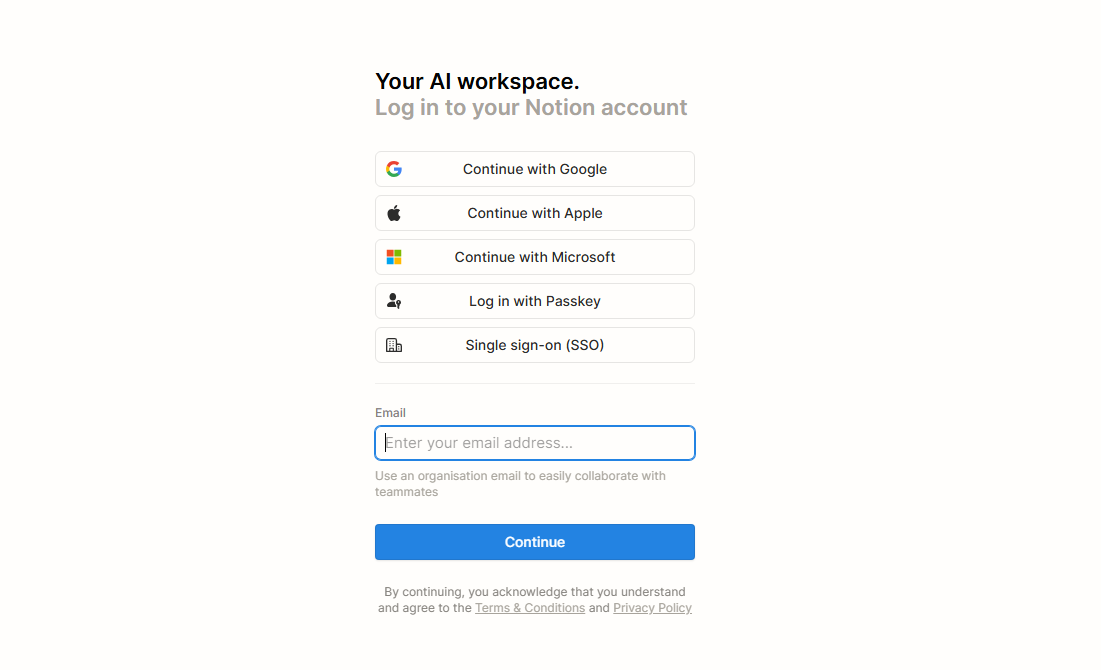
Go to Notion, sign up using your email or Google account, and you’ll start with a clean, blank workspace.
The free plan is perfect for personal use — you only need to upgrade if you’re sharing with a large team or uploading large files.
2. Understand the “Block” System
Everything in Notion is made up of blocks — like digital LEGO pieces.
● Each block can be:A text paragraph
● A heading
● A checklist
● An image
● A table or database
● Or even an embedded file
You can create a block by typing /, which opens Notion’s command menu.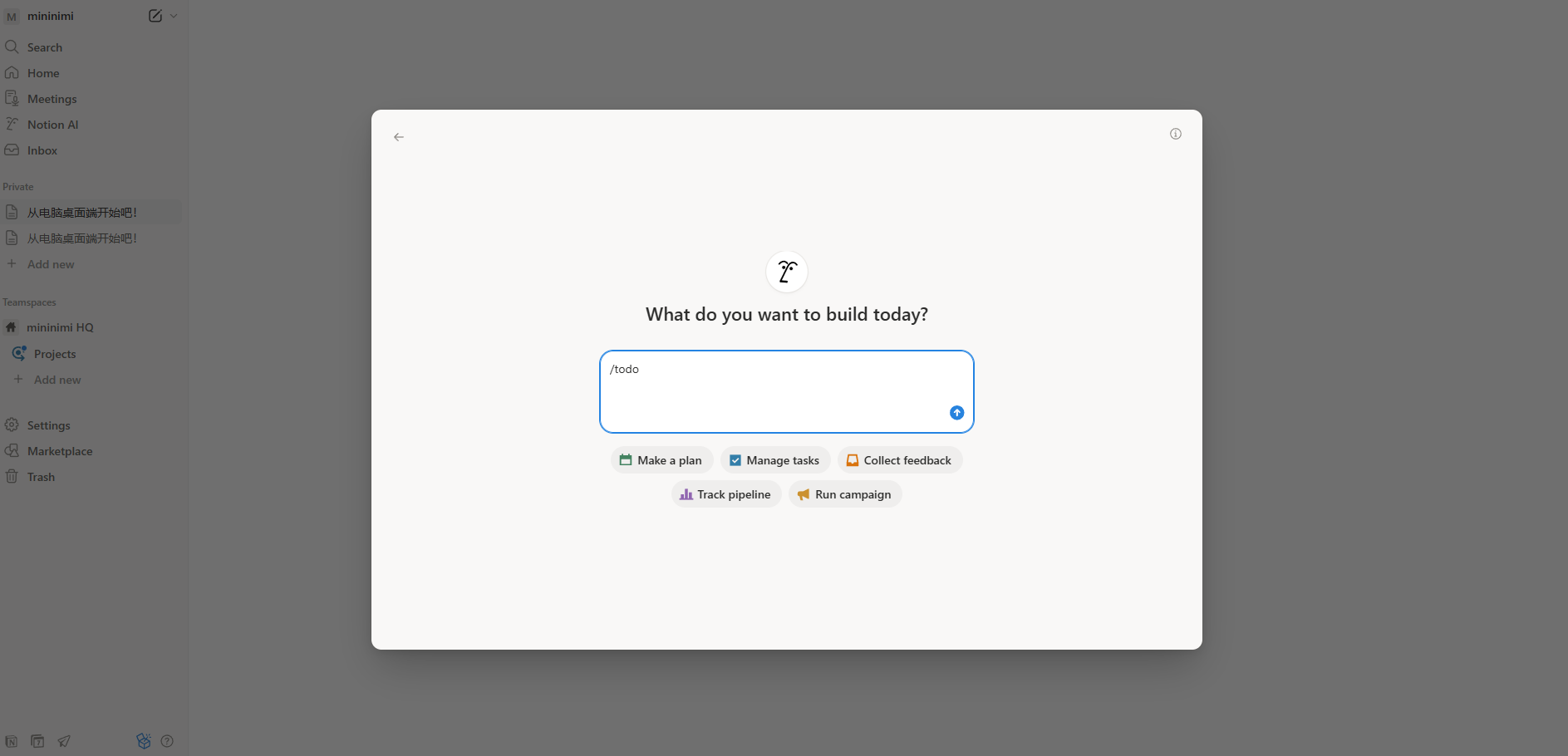 Example:
● Type /todo → creates a to-do checklist.
● Type /table → adds a mini database.
● Type /quote → formats a quote nicely.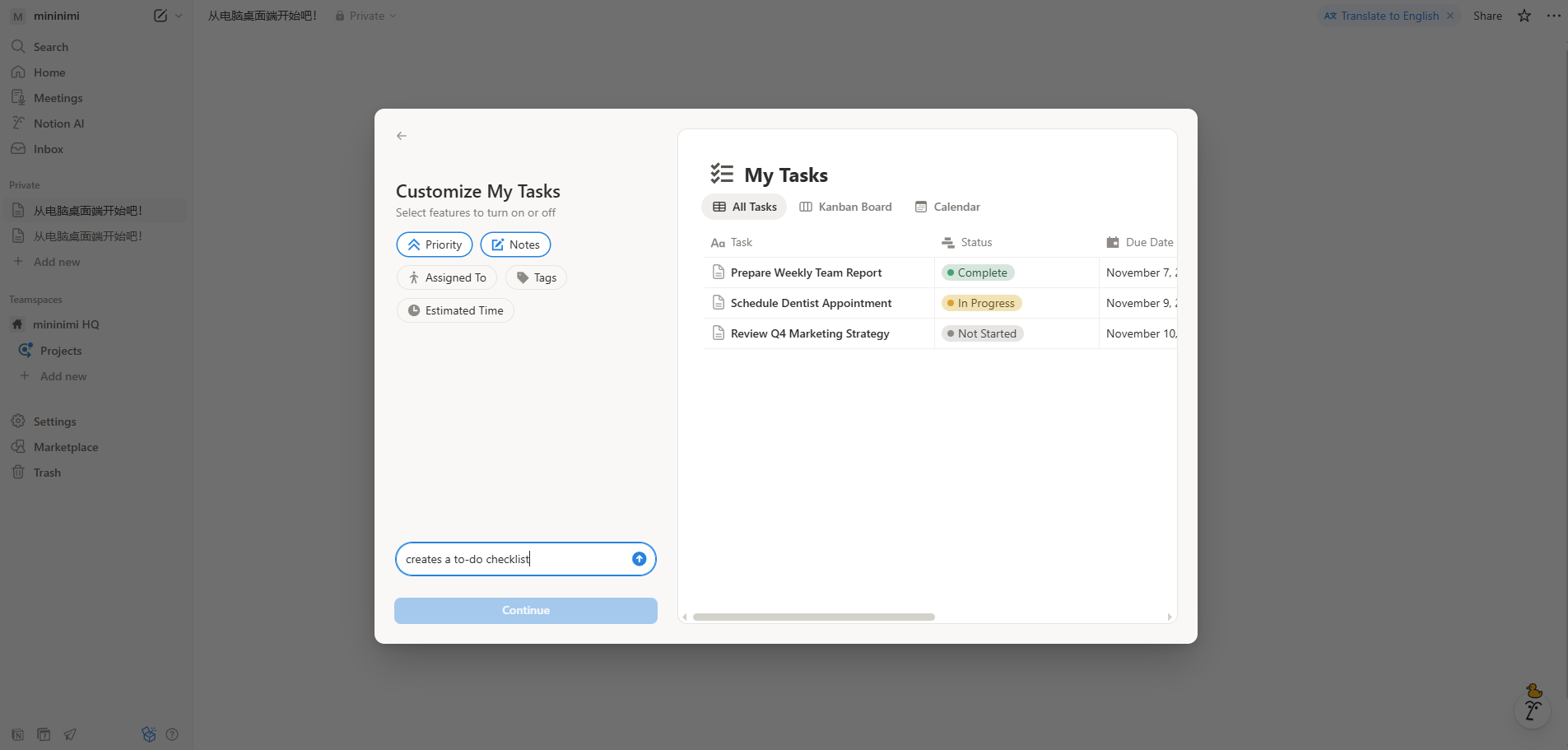 This system makes your workspace infinitely flexible — you can build anything from a simple note to a full content management system.
3. Create Your First Page
Click “+ New Page” on the sidebar. Give it a title like “My Writing Projects” or “Daily Planner.”
● Inside, you can add:Headings (/heading 1, /heading 2, etc.)
● To-do lists (/todo)
● Dividers (/divider)
● Bullet lists and images
Tip: Drag and drop blocks to rearrange them — Notion’s editor is very visual and intuitive.
4. Use Templates to Save Time
Notion comes with hundreds of free templates to help you start faster.
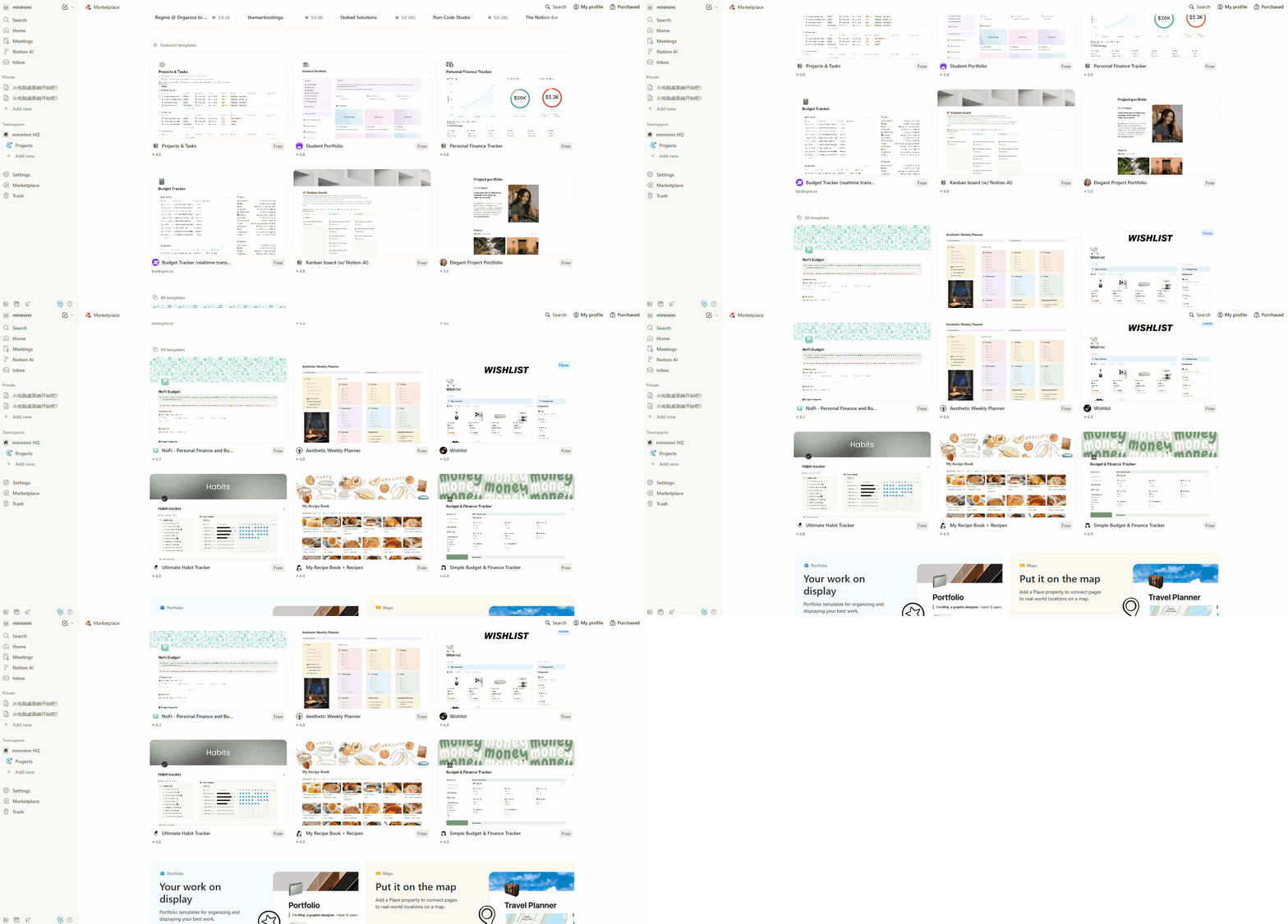
● You’ll find templates for: Weekly planners
● Goal trackers
● Knowledge bases
● Writing journals
● Reading lists
To use one, click Templates on the sidebar, choose what fits your purpose, and then customize it.
It’s one of the fastest ways to learn how Notion pages are built.
5. Organize with Databases
Databases are one of Notion’s most powerful features.
They look like tables — but each row can open into its own detailed page.You can add properties like:
●Status (To Do / In Progress / Done)
●Tags or Categories
●Date or Deadline
●Priority level
Notion also lets you view your data in multiple formats:
●Table view → like a spreadsheet
●Board view → like a Trello board
●Calendar view → based on dates
●Gallery view → visual cards for creative projects
Example:
● If you’re a writer, you can build a “Story Tracker” database with columns for:Title
●Genre
●Word count
●Status (Idea, Drafting, Editing, Published)
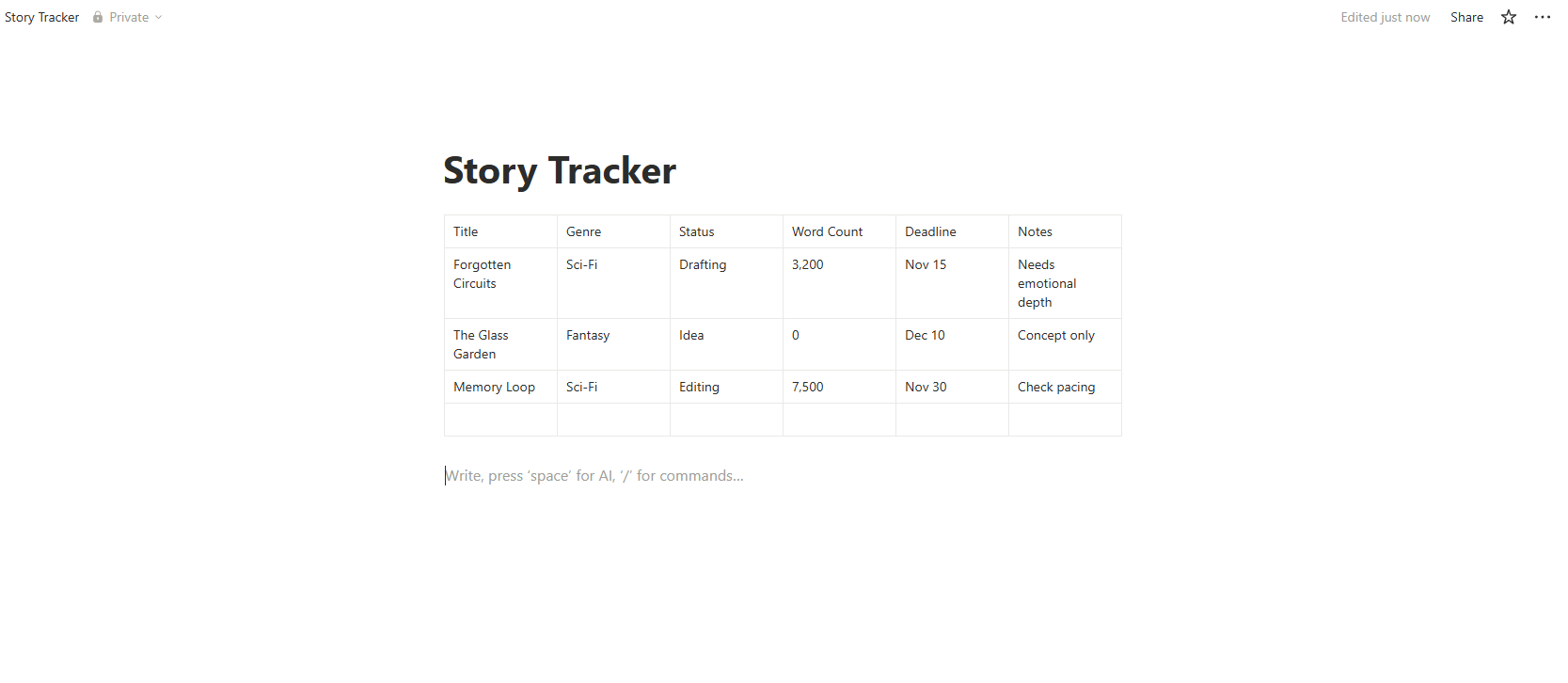
Then switch to Board View to drag your stories between stages as you progress.
6. Collaborate and Share Easily
You can invite teammates, friends, or clients to your Notion pages.
Click Share → Invite, then set access levels (View, Comment, or Edit).
You can also publish a Notion page as a public web link, making it perfect for:
● Online resumes
● Portfolios
● Shared resources
● Personal knowledge bases
7. Try Notion AI for Extra Productivity
Notion now includes an integrated AI assistant that can:
● Summarize long notes
● Rewrite text in different tones
● Generate task lists or brainstorm ideas
● Translate or clarify complex sections
Example:
You can highlight a section of meeting notes and ask:“Summarize this into 3 bullet points.”
or
“Rewrite this in a more friendly tone.”It’s like having a smart writing assistant built directly into your workspace.
Pro Tips for Using Notion Effectively
Start Simple.
Begin with basic notes or a single project tracker before building complex dashboards.
Use Templates as Learning Tools.
Explore how they’re structured, then adapt them for your own needs.Link Everything Together.
Use [[ ]] to create quick links between pages — this makes navigation super smooth.
Add Visual Cues.
Use emojis, dividers, and icons to make pages more readable and fun.
Set a Routine.
Open your Notion dashboard daily — treat it like your digital “home base.”
Experiment with Views.
Try switching your databases between table, board, and calendar formats — it changes how you see your data.
| Feature | Description |
|---|---|
| What it is | A flexible all-in-one workspace for notes, tasks, and collaboration |
| Best for | Writers, students, teams, freelancers |
| Key strength | Combines notes, databases, and project management |
| Free plan | Yes — with unlimited pages |
| AI features | Summarizing, rewriting, brainstorming, and task assistance |
Final Thoughts
Notion is more than just a productivity app — it’s a creative system builder. Whether you’re planning a novel, managing clients, or organizing your personal goals, Notion can adapt to your workflow instead of forcing you to fit into a rigid structure.
Start small, experiment, and build your digital workspace one block at a time.
Soon you’ll find yourself wondering how you ever managed your projects without it.